![[decorative]](https://mixagame.com/wp-content/uploads/2025/10/cropped-mixagame-redwhite-logo-1024x256-1.png)
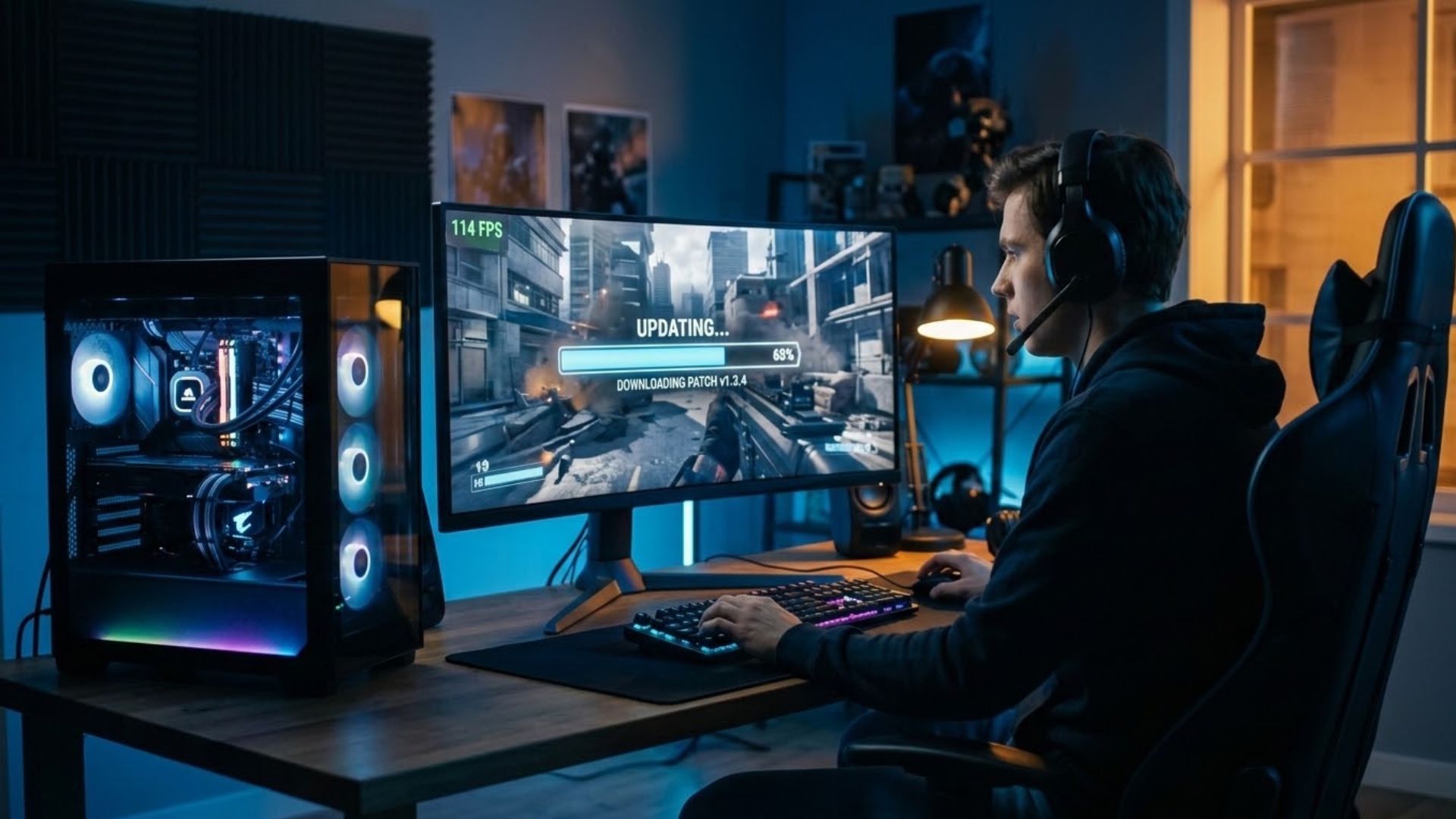
You boot up your favorite game after an update and within seconds you feel it. The frame rate stutters where it never did before, or the whole thing runs smoother than it has in months. Either way, something shifted, and the update is the reason. Game update performance on PC is one of the least understood corners of modern gaming, even though it touches every player who owns a rig and downloads a patch.
Here is the truth most people miss. A game is not a fixed object sitting on your drive. It changes constantly. In 2026, live service titles push new builds weekly, single player games get sprawling post launch support, and even a quiet bugfix can rewrite how efficiently your hardware works. Every one of those updates carries the power to lift your performance or quietly drag it down.
Most players treat this as a mystery. They patch, they play, and when something feels off they blame their GPU, their drivers, or bad luck. The reality is more knowable than that. Updates affect performance in predictable ways once you learn to read the signals, measure the results, and respond with intent. That is the whole game, and the players who master it stay smooth while everyone else complains in the forums.
This guide breaks the process into three parts. First, how to read what an update actually changed. Second, how to measure whether it helped or hurt. Third, how to spot the hidden shifts studios never mention and adjust your settings to take control. Together they turn patch day from a source of dread into something you handle in minutes.
Reading what an update actually changed
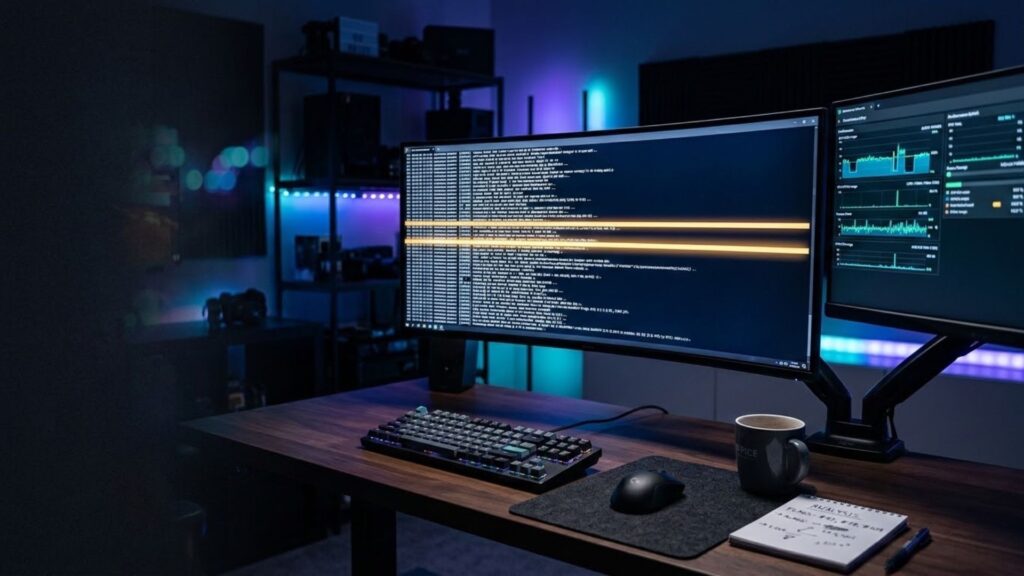
Every big patch drops a wall of text, and most players scroll past it like a phone contract. That habit costs real performance. Patch notes are the closest thing we get to a studio telling us in plain language what they just did to the game running on our machines. Learning to read patch notes is the first skill that separates informed players from frustrated ones.
The trick is that developers write in a dialect. Certain words carry weight far beyond their length. When you see optimized, treat it as a promise that may or may not hold on your specific hardware. When you see reworked, overhauled, or rebuilt, expect a bigger swing, and not always in your favor. Words like shader, streaming, occlusion, and particle point straight at your GPU. Anything mentioning netcode, server tick, or AI behavior leans on your CPU instead.
Here is a quick reference I keep in my head every time a new build lands.
| Patch note phrase | What it usually touches | Watch for |
|---|---|---|
| Reworked lighting or shadows | GPU, VRAM | Stutter in dense scenes |
| Optimized memory usage | RAM, streaming | Fewer hitches, or new ones |
| Updated AI or pathfinding | CPU | Frame drops in busy fights |
| New particle effects | GPU | Dips during explosions |
| Engine version bump | Everything | Reset settings, retest |
That last row is the sneaky one. When a studio upgrades the underlying engine, it can silently reset your graphics options or switch on features that were not there yesterday. I have watched whole communities panic over broken performance that turned out to be a config file politely wiping itself clean.
Not every change deserves your attention, and that is the other half of the skill. Balance tweaks, new cosmetics, and quest fixes fill most patch notes and rarely touch performance at all. Skimming past them is fine. The danger is that they bury the two or three lines that actually matter. So I scan for four words before I launch anything patched: engine, shader, memory, and streaming. If none appear, I relax. If two or more show up, I know to test before I judge.
Think about how far this has come. A decade ago a patch arrived every few months and mostly fixed crashes. Today, engines stream assets constantly and a backend tweak you never see can hammer your CPU without a single visible change on screen. The notes are your only early warning system, and reading them closely is the cheapest performance upgrade you will ever get.
Measuring whether the update helped or hurt
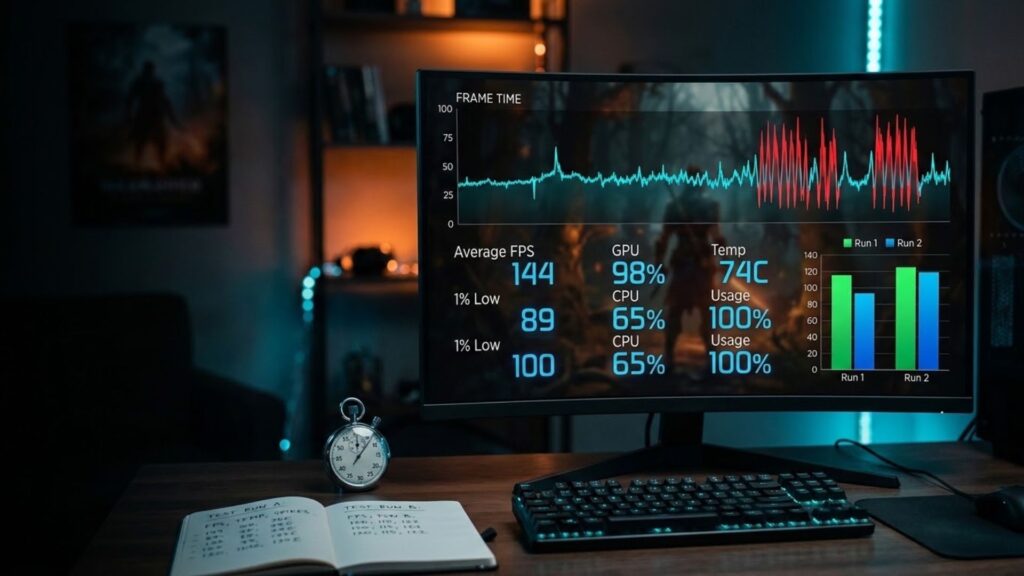
Reading the notes tells you where to look. It does not tell you what actually happened on your machine. For that you have to measure, because feelings lie and the corner counter alone does not tell the whole story. I learned this the hard way after swearing an update had ruined a game, only to run the test and find my frame rate had barely moved. My eyes had fooled me. The numbers had not.
The scariest three seconds in modern gaming happen right after an update installs, when you load in and check whether the number in the corner went up or fell off a cliff. That anxiety is fair, because updates genuinely swing both ways. Optimization patches aim to hand you frames back. Content patches often take them, not out of malice but because new maps, denser scenes, and flashier effects simply demand more from your rig. A frame drop after a content drop is not a bug. It is a bill coming due.
To know which happened, you need a baseline and a repeatable test. This sounds obvious, yet it is where most people quietly sabotage their own results. Pick a fixed scene you can recreate exactly. A specific corridor, the opening thirty seconds of a level, a slow camera pan across a busy hub. Lock your settings and write them down. Keep your resolution, your background apps, and your GPU driver steady across both runs, or at least note when one of them changes. Then capture the run before you patch and again after. The gap between those two runs is your real answer, not the anecdote from a stranger with a different CPU.
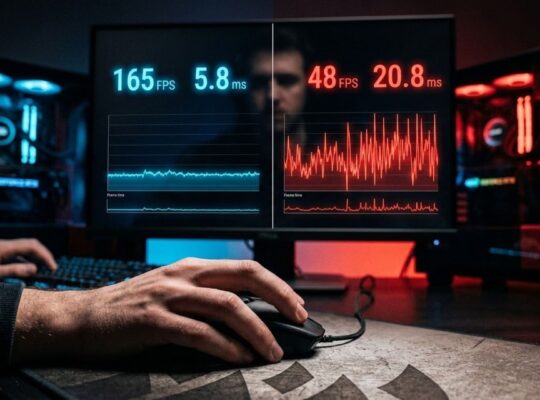
Now the part almost everyone gets wrong. Average FPS gets all the attention, but it tells only a third of the story. Serious testing tracks three numbers together. The average is your headline. The 1% lows reveal your worst frequent dips, the stutters that ruin a firefight even when the average looks fine. Frame time consistency shows how smooth the game actually feels, because a jittery frame pace reads as choppy no matter how high the average climbs.
Here is a real example from a benchmark I ran on an open world shooter after a mid season patch.
| Metric | Before update | After update | Change |
|---|---|---|---|
| Average FPS | 118 | 124 | +6 |
| 1% lows | 74 | 61 | -13 |
| Frame time consistency | Smooth | Occasional spikes | Worse |
Read that carefully, because it captures a pattern I see constantly. The average went up, which looks like a win. Yet the 1% lows dropped hard and the pacing got worse. In practice that faster build felt choppier during exactly the moments that decide matches. If you only tracked the average you would have called the patch an improvement and been completely wrong. A veteran QA tester I traded notes with last year said it best. Players chase the average because it is one easy number, but the game lives and dies in the lows.
One more trap fools even experienced players. Updates rarely land alone. GPU makers push new drivers around big patches, and those drivers can add or subtract frames on their own. So when your performance shifts, ask whether you changed the game, the driver, or both. Update your driver before you test or hold it steady on purpose, so you know which change caused what. Sloppy testing produces confident nonsense, and the internet already has plenty of that.
You do not need a lab for any of this. Free capture software like CapFrameX records your frame data during a run and hands you clean averages, percentiles, and graphs. Some games include built in benchmark modes that remove human error entirely. The point is not fancy gear. It is discipline. A modest rig with a careful tester beats a monster PC with a sloppy one every time. Once you have both runs, resist reacting to a single number. Look for the story across all three metrics, because that story tells you exactly what the update did to your game update performance on PC.
Spotting hidden changes and taking back control
Here is the uncomfortable truth every seasoned player eventually learns. Patch notes are incomplete by design. Somewhere in a studio right now, an engineer just shipped a change that will alter how your game runs tonight, and it will never appear in the changelog. This is not a conspiracy. It is simply how software gets made. A modern game ships thousands of tiny commits between builds, and no writer documents every one. Studios triage. They highlight what players want to see and let the small stuff slide.
Those undocumented changes often hit performance harder than anything listed. Studios adjust asset streaming, tweak shader compilation, rebalance memory, and retune background processes constantly. Any one of those can add stutter or shift your frame rate with no warning. Shader compilation is a favorite culprit. After a patch, many games rebuild their shader cache, which causes brutal stutter for the first hour of play, then vanishes once the cache fills. Players panic, blame the update, and post angry threads, when the real fix was simply playing through the rebuild. Knowing that pattern turns a scary regression into a five minute wait.
A former community manager once told me, with a shrug, not everything that ships is meant to be a headline. That honesty reframes the changelog as a curated message rather than a complete record. So when your performance shifts and the notes stay silent, trust your own eyes and your frame counter over the official word. Here are the silent changes I watch for most.
| Hidden change | How it shows up | What to do |
|---|---|---|
| Shader cache rebuild | Heavy stutter early, then smooth | Play through it, retest after an hour |
| Streaming rebalance | Pop in or hitching in new areas | Check texture and streaming settings |
| Memory reallocation | New crashes or steadier frames | Monitor RAM and VRAM usage |
| Reset config file | Settings changed on their own | Re apply your saved profile |
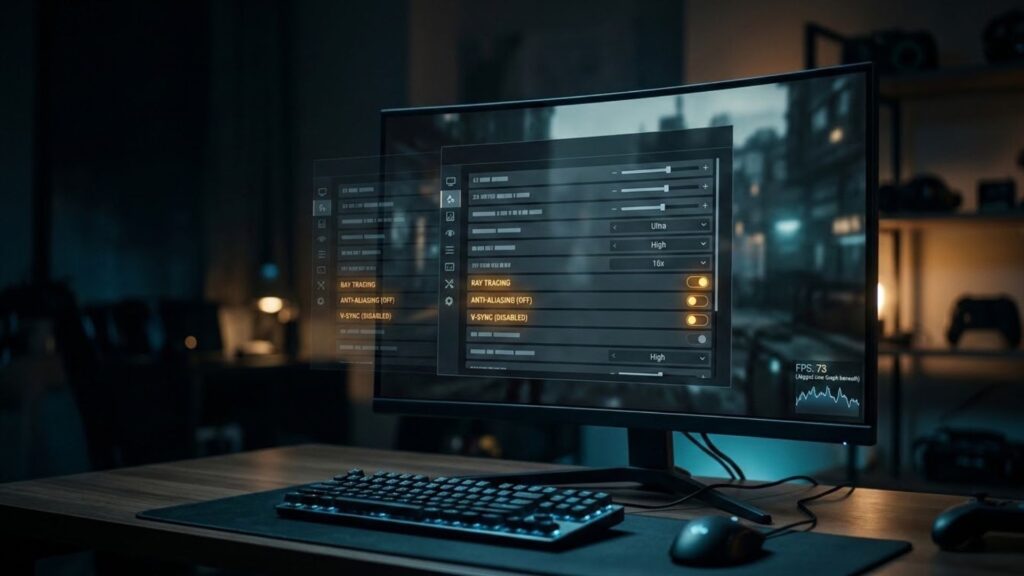
That last row deserves special attention, because it leads straight to the fix. When a patch resets your config, the settings you spent hours perfecting are gone, and the game quietly picks defaults built for an imaginary average machine. Your rig is not average. So the moment a big update lands, open your options menu and actually check it. Look for anything switched on that you had turned off, and anything reset to a value you never chose.
Then retune in the right order, because randomly yanking sliders wastes time. Start with the biggest performance hogs, since a single change there often solves the whole problem. Begin with upscaling like DLSS, FSR, or XeSS, which buys a large frame boost for minimal quality loss and often gets toggled off after a patch. Next tackle shadows and global illumination, which punish your GPU harder than almost anything else. Then look at texture and streaming settings, especially if new areas stutter or pop in. Save the small stuff like ambient occlusion for last, because it rarely moves the needle.
Change one thing at a time and test after each adjustment. If you overhaul five settings at once and performance improves, you will never know which change did the work, and you cannot repeat your success next patch. A hardware reviewer I follow put it plainly on a livestream last year. Auto settings exist to prevent crashes, not to make your game look or run its best. Defaults are a starting line, never a finish line.
There is a gameplay side to hidden changes too, and it stirs the most drama. Stealth nerfs, quiet adjustments to weapon damage, drop rates, or enemy behavior, erode trust when players eventually discover them. Data miners almost always find these, and the reveal often lands worse than an honest note would have. The lesson for studios is old and unlearned. Players forgive changes far more easily than they forgive being kept in the dark. For us on the receiving end, the takeaway is practical. When something feels different but the notes say nothing, you are probably right, and a quick test will prove it.
Where this leaves you?
Patch day used to feel like a coin flip to me. Now it feels like a routine I control. That shift did not come from better hardware. It came from a change in how I approach every update. I read the notes for the signals, I measure the results against a baseline, and I retune with intent when the numbers or my instincts tell me something moved. None of it takes long once the habit forms, and each cycle gets faster.
That is the real story of game update performance on PC in 2026. Updates will keep coming, faster and heavier than ever, and studios will keep leaning on us to fill the gaps their notes leave behind. You can meet that with frustration, or you can meet it with method. The players who treat every patch as a puzzle rather than an insult end up with smoother games, sharper instincts, and far less wasted time. They become the person in the group chat who actually knows why the game feels different, instead of the one guessing.
The fastest win sits right in your options menu. If a fresh build just knocked your game sideways, learning the best game settings to use after an update will get you back to smooth in minutes, before you blame anything else. Everything else in this guide builds on that same principle. Read, measure, adjust, repeat. So the next time a download bar fills and your game feels a little different, will you take the studio’s word for it, or find out for yourself what really changed?