![[decorative]](https://mixagame.com/wp-content/uploads/2025/10/cropped-mixagame-redwhite-logo-1024x256-1.png)
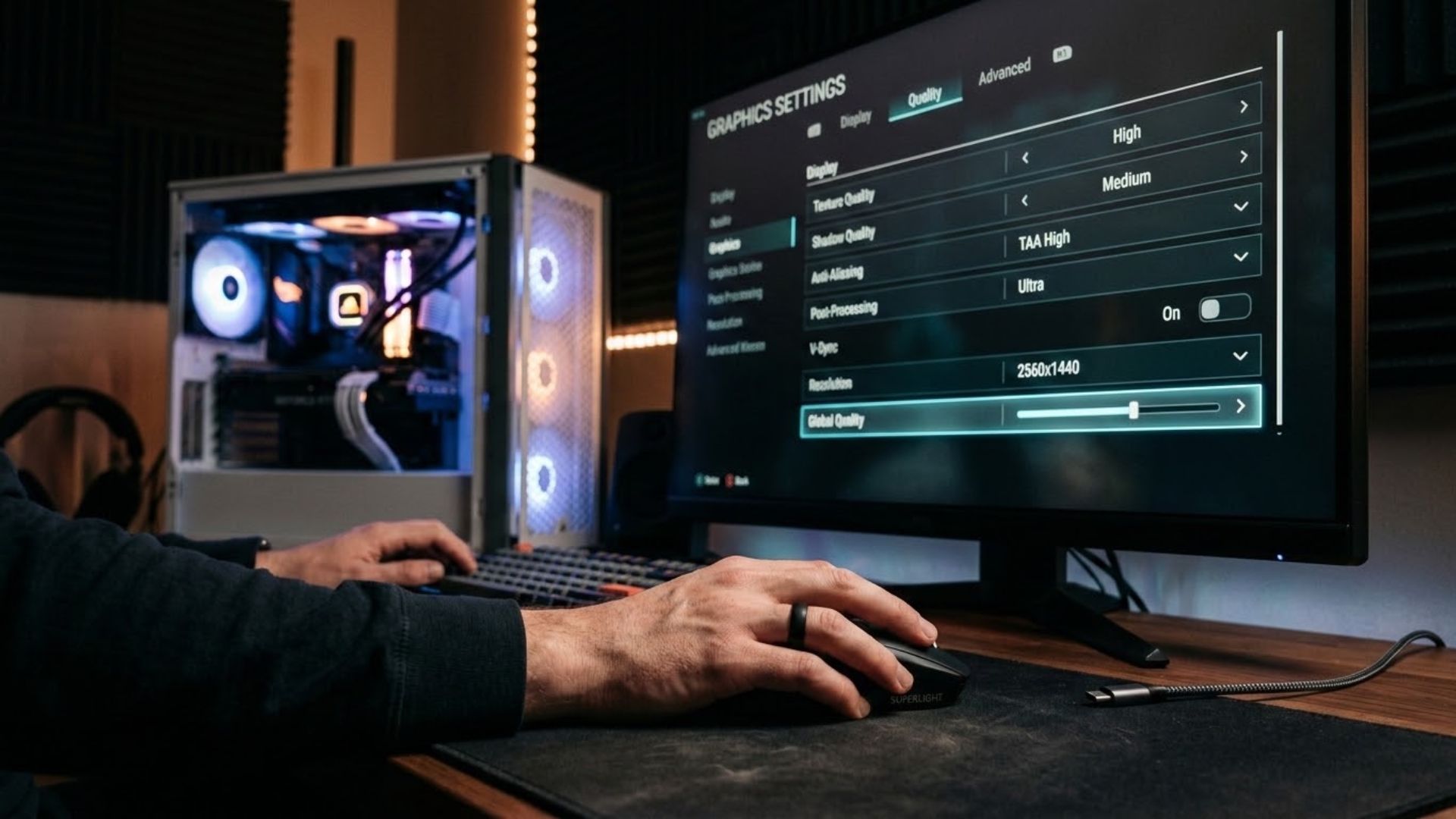
A patch finished installing last night, you jumped straight into a match, and something felt wrong before you could even name it, so you did what most players do and blamed the game. Here is the twist you probably missed: the update may have quietly reset your graphics options, and the settings you spent hours perfecting are gone. Dialing in the best game settings after an update is not busywork. It is the fastest way to claw back the smooth, responsive experience a fresh build so often disturbs, and most players skip it entirely.
Why a patch wrecks your settings?
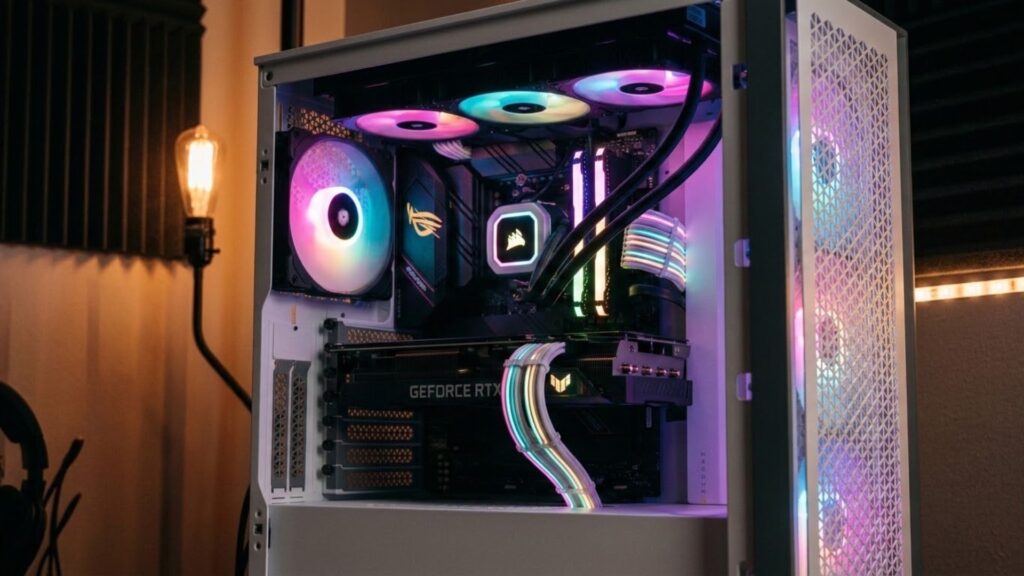
Updates and settings have a messy relationship, and understanding it saves you a lot of frustration. When a studio ships a patch, it sometimes rewrites the config files that store your preferences. New graphics options get added, old ones get renamed or removed, and your carefully tuned profile can revert to a default the game picks for you. You never agreed to it. The build just decided. Engine upgrades make this worse. When a game jumps to a new engine version, it may introduce entirely new rendering features, some of them switched on by default, quietly eating frames you did not budget for. In 2026, with live service titles patching constantly, this cycle repeats far more often than anyone would like.
Start with a clean audit
Before you touch a single slider, you need to see what the patch actually did, and that starts with a full pass through your options menu. Open it and check every important setting against the notes you saved, or against what you remember. Look for anything switched on that you had turned off, and anything reset to a value you never chose. Pay special attention to the heavy hitters. These are the settings that move your frame rate the most, and they are the usual suspects when a patch tanks performance.
| Setting | Performance cost | First move after a patch |
|---|---|---|
| Ray tracing / global illumination | Very high | Confirm it did not switch on |
| Shadow quality | High | Drop one notch if lows fell |
| Texture streaming | High on low VRAM | Match to your card, not the default |
| Anti-aliasing | Medium | Prefer efficient modes over heavy ones |
| Volumetric effects / fog | Medium to high | Lower in dense scenes |
| Upscaling (DLSS, FSR, XeSS) | Saves frames | Re-enable if the patch reset it |
That last row is the one I check first every single time. Upscaling tech often gets toggled off or reset after an update, and re-enabling it can instantly hand back the frames a patch stole.
Tune in the right order
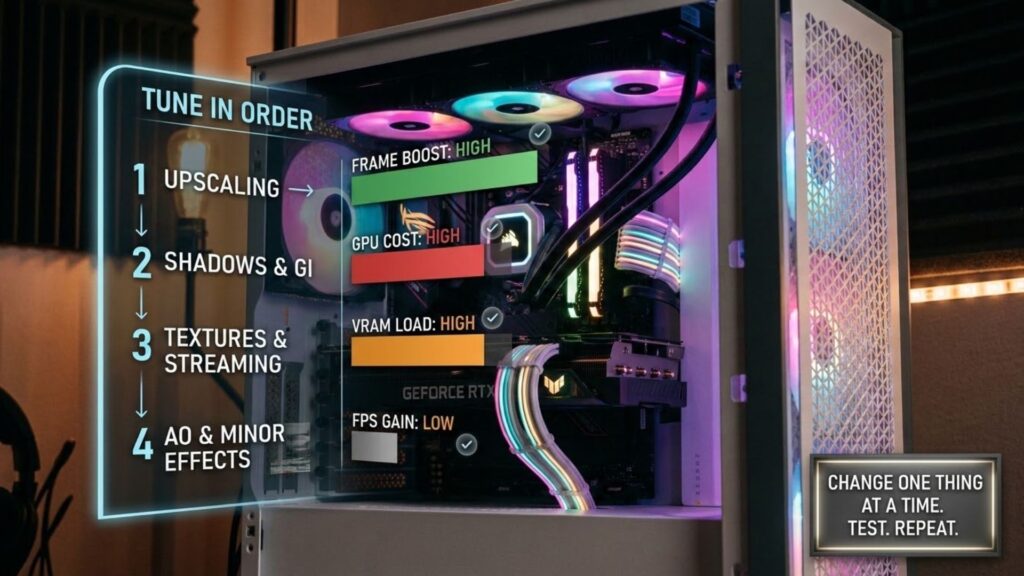
Randomly yanking sliders wastes time, so the smart approach is to adjust settings in the order that gives you the most frames for the least visual loss. Start with the biggest performance hogs, because a single change there often solves the whole problem. Begin with upscaling like DLSS or FSR, since a good implementation buys you a large frame boost with minimal quality cost. Next, tackle shadows and global illumination, which punish your GPU harder than almost anything else. Then look at texture and streaming settings, especially if new areas stutter or pop in. Save the small stuff, like ambient occlusion and minor effects, for last, because they rarely move the needle enough to matter. Change one thing at a time and test after each adjustment. If you overhaul five settings at once and performance improves, you will never know which change did the work, and you cannot repeat your success next patch.
Match settings to your hardware, not the default
The default a game picks is a compromise built for an imaginary average machine, and your rig is not average. A card with plenty of VRAM can push texture and streaming settings the default keeps conservative, while a tighter GPU needs those pulled back to avoid stutter. The build does not know your hardware. You do. A hardware reviewer I follow put it plainly during a livestream last year: auto settings exist to prevent crashes, not to make your game look or run its best. That line reframed how I treat every fresh install. Defaults are a starting line, never a finish line.
Lock it in and save a reference
Once your game feels right again, protect that work so the next patch cannot erase it quietly. Write down your key settings, or screenshot the menus, so you have a reference to restore from after the following update. Some players keep a simple text file with their tuned values for each game they play, which turns a twenty-minute retune into a two-minute check. This habit compounds over time. Instead of dreading patch day, you build a routine: audit, retune in order, test, and save. Each cycle gets faster, and your games stay smooth while everyone else complains in the forums.
Retuning after an update is one of the most underrated skills in PC gaming, precisely because the fix is free and sitting right there in the menu. A patch can knock your experience sideways in seconds, and a few focused minutes can set it right again. The players who master this never stay frustrated for long. If you want to see how settings tie into benchmarks, drivers, and the hidden tweaks studios ship, our complete guide to how game updates affect PC performance connects every piece. So after your next update lands, will you accept whatever the game chose for you, or take back control of how it runs?