![[decorative]](https://mixagame.com/wp-content/uploads/2025/10/cropped-mixagame-redwhite-logo-1024x256-1.png)
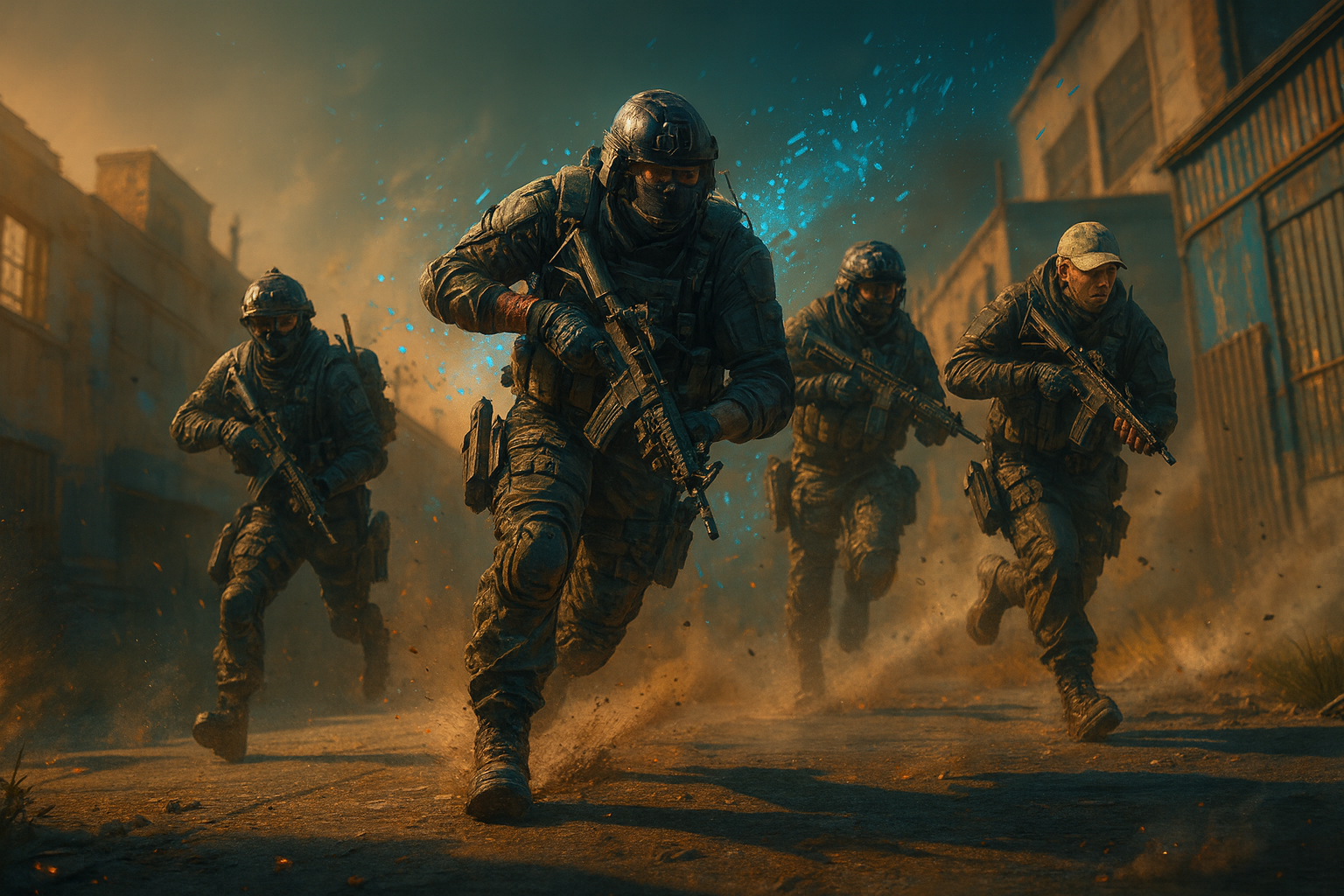
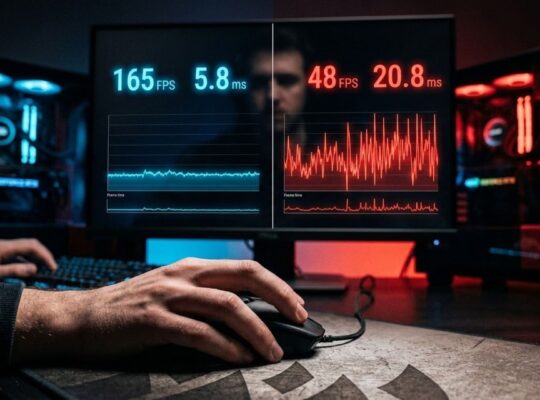
Black Ops 6 and Warzone kept bailing to desktop with a DirectX pop up or a vague “verify and repair” loop. Drivers were current, files were clean, temps were fine. The culprit turned out to be memory instability. Two minutes in the BIOS solved it.
TLDR
Most COD crash loops on otherwise healthy rigs come from marginal RAM settings. Disable your XMP or EXPO profile and test. If the game stabilizes, re enable memory at a slightly lower speed or keep the safer setting.
Why RAM breaks COD
COD engines hammer VRAM and system RAM with big shader caches and streaming assets. If your DIMMs are pushed by aggressive XMP or EXPO timings, tiny errors trigger DirectX faults that look like file corruption. The game is innocent. Your memory training is not.
The two minute fix
- Enter BIOS
Restart and tap Delete or F2 during boot. - Turn off XMP or EXPO
Set memory to Auto or default JEDEC speed. Save and reboot. - Test the game
Play for 15 to 30 minutes. If crashes vanish, RAM settings were the cause.
Optional fine tuning
- If you want some speed back, re enable XMP or EXPO then downclock one step. Example: 6000 to 5600 MT s.
- Keep command rate at 2T if available.
- Update to the latest motherboard BIOS for improved memory training.
- If issues persist, run Windows Memory Diagnostic or MemTest86 and try another DIMM slot pairing.
Extra stability checks that help COD
- Shader cache reset inside COD settings after big patches.
- GPU driver clean install using the vendor’s tool.
- Page file set to System managed on the OS drive.
- Background overlays off while testing.
- Power plan on Balanced or High performance, not a low power custom.
What worked for me
Disabling EXPO fixed crashes immediately. I later re enabled it and lowered the memory speed one step. Frames were unchanged in game, stutters disappeared, and the DirectX gremlin retired.
You might also like: REPO's Latest Update Proves Horror Games Can Have a Heart Too.
You might also like: How IO Interactive Designs Hitman Maps and What Comes Next for the Series.
GPU Driver Solutions and Rollback Process
When RAM fixes don’t resolve your Call of Duty crashing PC issues, outdated or corrupted GPU drivers often take the blame. Both NVIDIA and AMD frequently push driver updates that can introduce stability problems with COD titles. Start by downloading Display Driver Uninstaller (DDU) from Guru3D and boot into Safe Mode. Run DDU to completely remove your current graphics drivers, then restart and install the latest drivers from your GPU manufacturer’s website.
If crashes persist with new drivers, consider rolling back to a previous version. For NVIDIA users, drivers from 2-3 months prior often provide better COD stability than bleeding-edge releases. AMD users should check the known issues section of driver release notes, as Radeon drivers sometimes conflict with specific COD updates. Download older driver versions from the manufacturer’s archive section and install using the same DDU process.
Shader pre-compilation can also eliminate crashes during gameplay. In the COD launcher or in-game settings, look for “Shader Installation” or “Cache Shaders” options. Allow this process to complete fully before starting matches. This prevents the game from compiling shaders during intense gameplay moments, which can trigger crashes on systems with borderline stability.
DirectX Configuration and System Diagnostics
Call of Duty titles support multiple DirectX versions, and switching between them often resolves persistent crashes. Access your game’s graphics settings and look for “DirectX Version” or “Graphics API” options. Try switching between DirectX 11 and DirectX 12 modes. DX12 offers better performance but can cause crashes on older hardware or with certain driver combinations. DX11 provides broader compatibility at the cost of some visual features.
Windows Event Viewer provides crucial crash diagnostics that generic error messages miss. Press Windows + R, type “eventvwr” and navigate to Windows Logs > Application. Look for error entries timestamped around your COD crashes. Common error sources include “Application Error,” “Windows Error Reporting,” or entries mentioning the COD executable. These logs often reveal specific DLL conflicts, memory access violations, or hardware-related failures that point toward targeted solutions.
Pay attention to error codes like 0xc0000005 (access violation) or 0xc0000409 (stack buffer overflow), which suggest memory or driver issues. Error patterns help distinguish between random crashes and systematic problems requiring specific fixes.
Anti-Cheat and File Integrity Solutions
Ricochet Anti-Cheat integration can conflict with system software and cause COD crashes that appear unrelated to cheating prevention. Temporarily disable real-time antivirus scanning, close RGB control software, and exit hardware monitoring tools before launching COD. MSI Afterburner, EVGA Precision, and similar utilities sometimes trigger false positives in Ricochet, leading to sudden game termination.
Windows Defender and third-party antivirus programs may quarantine COD files or interfere with Ricochet’s kernel-level operations. Add your COD installation folder and Battle.net or Steam directories to your antivirus exclusion list. This prevents real-time scanning from interrupting game processes or blocking legitimate file operations.
File verification catches corrupted game data that survives initial installation. In Battle.net, click the gear icon next to COD and select “Scan and Repair.” Steam users should right-