



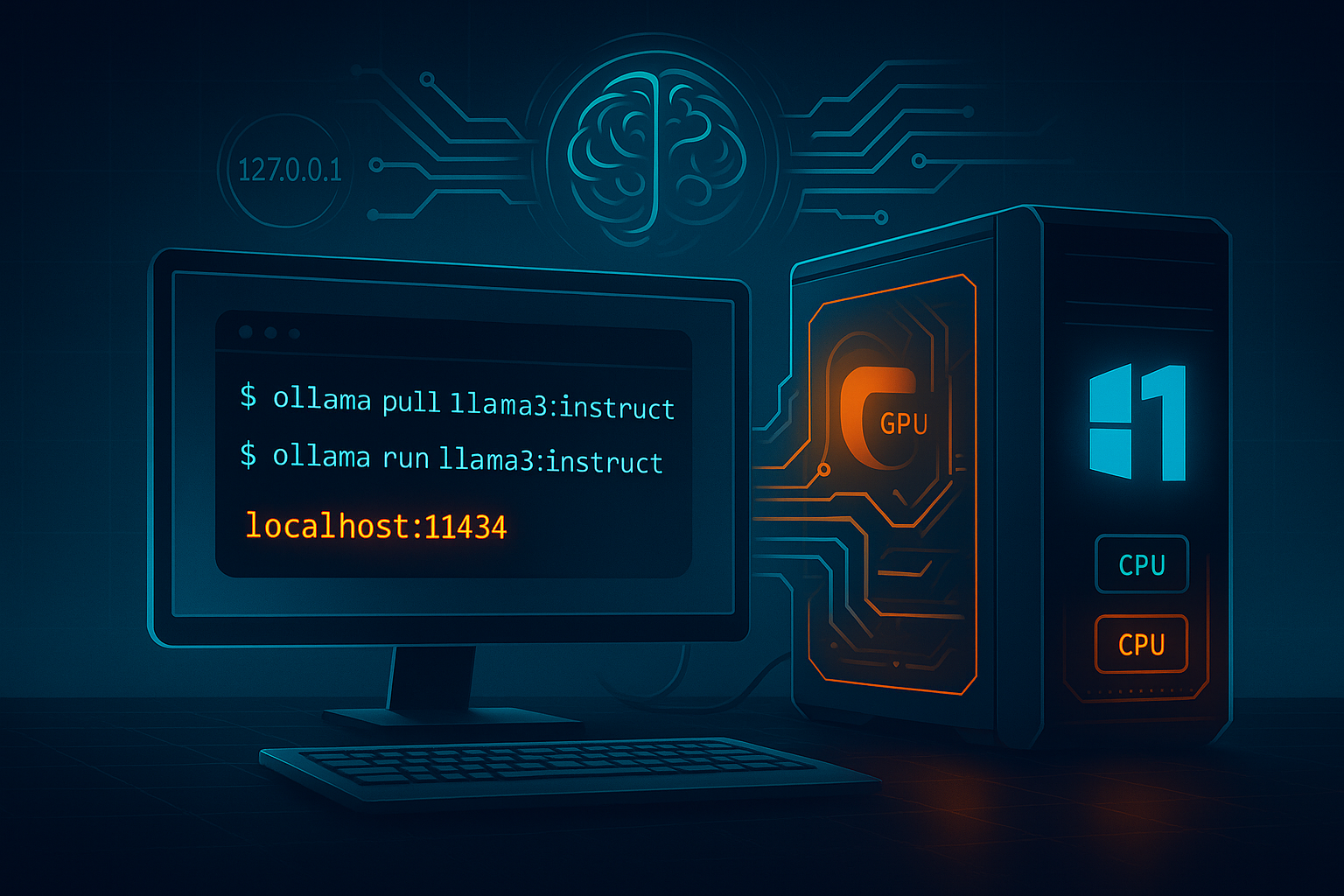
Want private, high speed AI on your own rig instead of the cloud? Ollama makes local models simple on Windows 11. Here is a clean, compact guide that gets you from zero to your first response in minutes, plus tips for performance and a few friendly tools.
Why pick Ollama
- Runs a wide range of open models locally
- Works on Windows 11, macOS, Linux and WSL
- Lightweight service with a local API on
localhost:11434 - CLI and a basic GUI, plus plug in UIs like OpenWebUI or Page Assist
Minimum specs and expectations
- 8 GB RAM or more recommended
- Dedicated GPU helps a lot, but CPU only is possible with small models
- Bigger models need more VRAM and system memory
- On laptops or older PCs, start with small sizes like 1B to 4B or quantized builds
Install steps on Windows 11
- Download and install
Get the Windows installer from the official Ollama website. Run it and follow the prompts. - Launch the service
After install, Ollama runs in the background. You will see a tray icon.
Check it is alive by visitinghttp://localhost:11434in your browser. - Open a terminal
Use PowerShell or Windows Terminal. The CLI is where Ollama shines.
Your first model
# pull a model
ollama pull llama3:instruct

# chat with it
ollama run llama3:instruct
Helpful alternatives: mistral, phi3, qwen2, or smaller sizes like llama3:8b-instruct. If your PC struggles, try a quantized tag such as :Q4 when available.
Use the local API
Apps can call Ollama over HTTP. Quick check with curl:
curl http://localhost:11434/api/generate `
  -H "Content-Type: application/json" `
  -d "{ \"model\": \"llama3:instruct\", \"prompt\": \"Explain DLSS in one sentence.\" }"
This is great for hooking the model into dev tools, chat front ends, or automations.
Simple GUI options
- Ollama app shows a basic interface and manages the background service
- OpenWebUI offers a full chat web app on top of your local models
- Page Assist runs from your browser and talks to Ollama behind the scenes
Performance tips
- Close VRAM heavy apps before loading a large model
- Prefer smaller or quantized models for laptops
- Update GPU drivers and keep your motherboard BIOS current
- If you get errors when loading on GPU, force CPU testing with
setx OLLAMA_NUM_GPU 0Restart the service, confirm it runs, then step back up to a modest GPU model
Troubleshooting checklist
- Service not reachable
- Start it manually:
ollama serve - Reboot after install if the tray icon does not appear
- Start it manually:
- Model too slow or failing to load
- Try a smaller size or quantized variant
- Reduce other GPU workloads and ensure sufficient free disk space
- Want Linux tools on Windows
- Install WSL and run Ollama inside your distro for a Linux style environment