




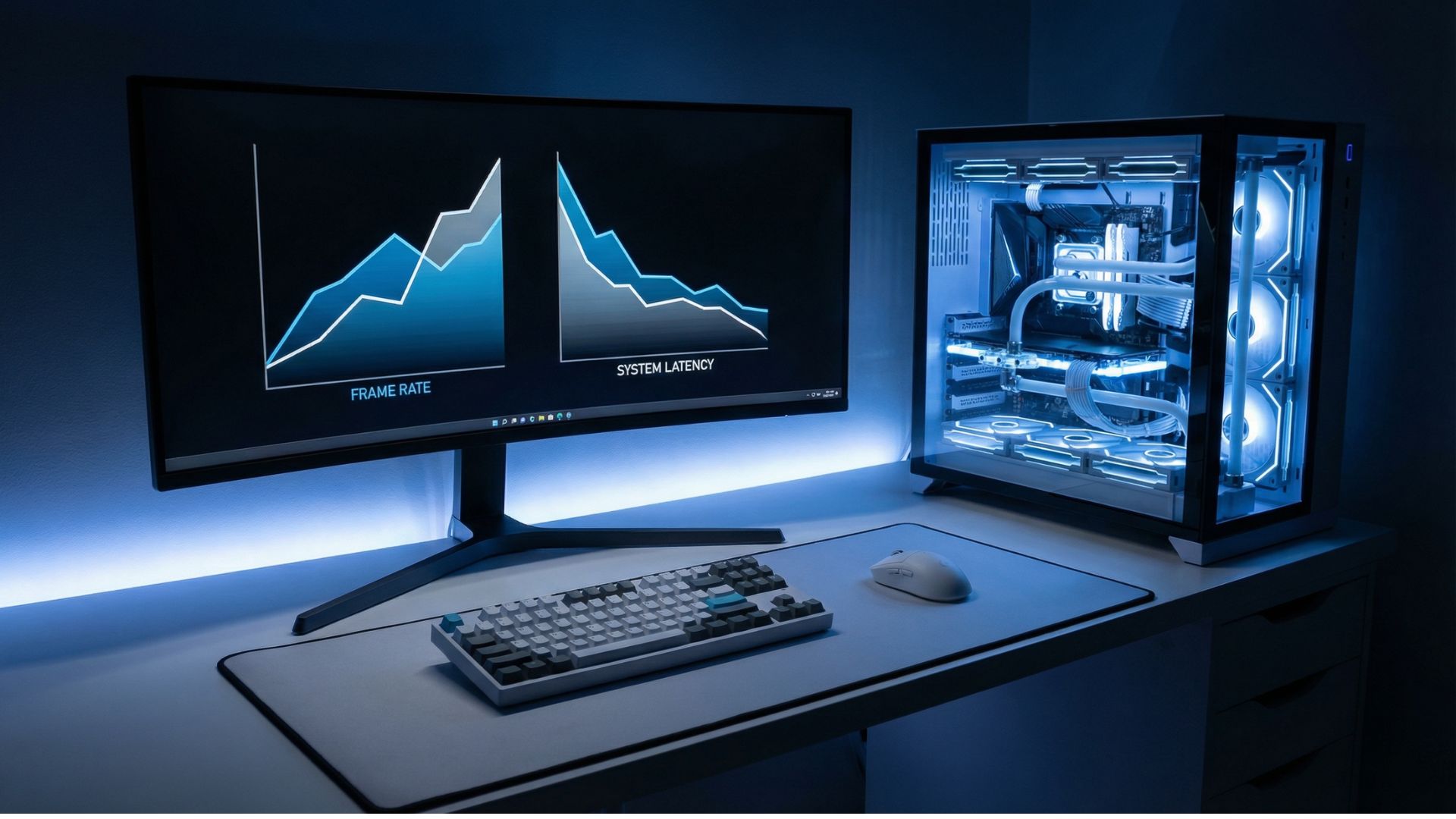
That stuttering you experience every time enemies rush your position in Fortnite isn’t your lack of skill. It’s your PC holding you back.
Most gaming PCs run nowhere near their potential out of the box. Windows ships with default settings designed for general productivity, not competitive gaming. Background processes consume resources. Power management throttles performance. Visual effects eat frames. The good news? Fixing these issues costs nothing but time, and the results can genuinely transform your gaming experience.
This guide walks through every meaningful Windows optimization that actually impacts gaming performance. No snake oil, no paid software requirements, just proven tweaks that competitive players have used for years to squeeze every possible frame from their hardware.
Create a restore point before touching anything
Before making any system changes, protect yourself. Windows System Restore creates a snapshot of your current configuration that you can return to if anything goes sideways.
Search “Create a restore point” in the Windows search bar, click the System Protection tab, select your system drive, and create a new restore point with a descriptive name like “Pre-Gaming Optimization.” This five-minute step saves hours of potential troubleshooting.
Think of it as quicksaving before a boss fight. You wouldn’t enter a Dark Souls encounter without saving first, and you shouldn’t modify your operating system without similar protection.
Disable fullscreen optimizations for your games
Windows 10 and 11 include a “fullscreen optimization” feature that sounds helpful but often creates problems. The system tries to run fullscreen games in a special windowed mode to enable features like Game Bar overlays and faster alt-tabbing. For many titles, this introduces input lag and performance inconsistencies.
Navigate to your game’s executable file, right-click, select Properties, go to the Compatibility tab, and check “Disable fullscreen optimizations.” Apply this to every competitive game you play seriously.
Games that commonly benefit:
| Game | Improvement Type | Expected Impact |
|---|---|---|
| Fortnite | Input lag reduction | Noticeable |
| Valorant | Frame time consistency | Moderate |
| Apex Legends | Micro-stutter reduction | Noticeable |
| Call of Duty | Input responsiveness | Moderate |
| CS2 | Frame pacing | Moderate |
While you’re in the Compatibility settings, also set “High DPI scaling override” to “Application.” This ensures the game renders at its intended resolution without Windows applying any scaling that could introduce blurriness or performance overhead.
Configure your GPU properly
Windows sometimes gets confused about which graphics processor to use, especially on laptops with integrated and dedicated GPUs. Even desktop users benefit from explicitly telling Windows to prioritize their gaming hardware.
Open Settings, navigate to System, then Display, then Graphics. Find your game in the list (or add it manually) and set the GPU preference to “High performance.” This ensures Windows routes the game to your dedicated graphics card rather than potentially defaulting to integrated graphics.
For Nvidia users, open Nvidia Control Panel and navigate to “Manage 3D settings.” Under the Global Settings tab, find “Power management mode” and set it to “Prefer maximum performance.” This prevents your GPU from downclocking during gameplay to save power, ensuring consistent frame rates rather than fluctuating performance.
Also in Nvidia Control Panel, go to “Adjust image settings with preview” and select “Use my preference emphasizing: Performance.” This tells the driver to prioritize speed over visual fidelity in ambiguous situations.
Optimize your power plan
Windows power plans significantly impact gaming performance, especially on laptops but also on desktops. The default “Balanced” plan actively throttles components to reduce power consumption, which directly translates to lower frame rates.
Open Control Panel, navigate to Power Options, and select “High Performance.” If you don’t see this option, click “Show additional plans” or create a custom plan based on High Performance settings.
For users comfortable with advanced tweaks, consider downloading and enabling the “Ultimate Performance” power plan, which Microsoft designed for workstation use but works perfectly for gaming. Open an elevated PowerShell window and run: powercfg -duplicatescheme e9a42b02-d5df-448d-aa00-03f14749eb61
This creates the Ultimate Performance plan, which disables all power throttling for maximum sustained performance.
Enable hardware-accelerated GPU scheduling
Windows 10 version 2004 and later includes Hardware-Accelerated GPU Scheduling (HAGS), which reduces latency by allowing the GPU to manage its own memory scheduling rather than relying on Windows.
Open Settings, go to System, then Display, then Graphics, and click “Change default graphics settings.” Toggle “Hardware-accelerated GPU scheduling” to On.
Results vary by game and hardware configuration. Some players report noticeable improvements, while others see minimal difference. Since the feature exists specifically to improve gaming, it’s worth enabling and testing in your most-played titles.
Manage startup programs ruthlessly
Every program that launches with Windows consumes RAM and potentially CPU cycles. Many applications install themselves to auto-start without asking, accumulating over time until your system boots slowly and runs games with unnecessary background load.
Open Task Manager (Ctrl+Shift+Esc), click the Startup tab, and disable everything you don’t absolutely need running from boot. Game launchers, RGB software, hardware monitoring tools, and other conveniences can all be started manually when needed rather than consuming resources constantly.
Common startup bloat:
| Program Type | Keep Enabled? | Reasoning |
|---|---|---|
| Antivirus | Yes | Security essential |
| Audio drivers | Yes | Required for sound |
| Game launchers | No | Start manually when gaming |
| RGB software | No | Start manually if needed |
| Cloud sync services | Maybe | Depends on workflow |
| Hardware monitoring | No | Start manually when needed |
| Manufacturer utilities | Usually no | Often unnecessary |
For deeper startup management, download Autoruns from Microsoft’s Sysinternals suite. This free utility reveals every program, service, and scheduled task that runs automatically, including items hidden from Task Manager’s simplified view.
Configure virtual memory properly
Virtual memory (the page file) serves as overflow when your RAM fills up. Windows manages this automatically, but manual configuration often improves stability and performance, especially for memory-hungry games.
Search “Advanced system settings,” click Settings under Performance, go to the Advanced tab, and click Change under Virtual Memory. Uncheck “Automatically manage paging file size,” select your system drive, choose “Custom size,” and set both Initial and Maximum to 1.5x your installed RAM (so 24,000 MB for a 16GB system).
This prevents Windows from constantly resizing the page file during gameplay, which can cause stutters when the system suddenly needs more virtual memory.
enable game mode (but understand its limits)
Windows Game Mode theoretically optimizes your system for gaming by limiting background activity during play sessions. Results vary significantly between systems and games.
Open Settings, go to Gaming, then Game Mode, and toggle it On. Test your most-played games with it enabled and disabled to determine whether it helps your specific configuration.
Some users report genuine improvements, while others find it either neutral or actually harmful to performance. The feature has improved substantially since its buggy Windows 10 debut, making it worth testing in current Windows versions.
Remove bloatware and disable telemetry
Windows ships with numerous pre-installed applications and background services that serve Microsoft’s interests rather than yours. Candy Crush, Xbox Game Bar (if you don’t use it), various “Get Started” apps, and Microsoft’s telemetry services all consume resources.
Open Settings, go to Apps, and uninstall anything you don’t use. Be conservative here since some items that look unnecessary actually serve important functions. When in doubt, leave it installed.
For telemetry and background services, tools like O&O ShutUp10 provide user-friendly interfaces to disable various Windows tracking and data collection features. These typically have minimal performance impact but improve privacy and reduce occasional background activity spikes.
Network optimization for online gaming
Competitive online games like Fortnite, Valorant, and Apex Legends depend on stable network connections as much as raw hardware performance.
In Windows Settings, go to Network & Internet, then Advanced network settings, and ensure your connection uses your fastest adapter if multiple options exist. Disable any power saving features for your network adapter in Device Manager.
Consider disabling Nagle’s Algorithm, which batches network packets for efficiency at the cost of latency. This requires registry editing, so research the specific steps and ensure you understand the changes before implementing them.
The realistic expectations check
These optimizations genuinely help, but they won’t transform a budget PC into a high-end gaming rig. If your hardware struggles to run a game at playable frame rates, software tweaks can only do so much.
What you can realistically expect:
Smoother frame pacing with fewer stutters and micro-freezes. Reduced input lag for more responsive controls. More consistent performance without random dips. Faster boot times and snappier system responsiveness. Better thermal management since your system works more efficiently.
What these changes won’t do:
Double your frame rate. Fix hardware bottlenecks. Compensate for inadequate RAM or GPU. Make a laptop perform like a desktop.
The combination of all these optimizations typically yields 5-15% performance improvements depending on your starting configuration and how much bloat your system accumulated. For competitive gaming where every frame matters, that difference can separate victory from defeat.
Which optimization made the biggest difference for your gaming setup, and are there any tweaks you’ve discovered that weren’t covered here?